Showing posts with label Metatrader 5 Strategy Tester. Show all posts

One of the big improvements of the new Metatrader 5 strategy tester is the possibility to use individual calculation frameworks ( agents ) to distribute the load within the multiple (remote) cores and as result, to greatly increase the speed of trading strategies optimization / calculation. The agents can be installed on remote computers in your local home/work network or on other internet-connected pc's around the world.

Thus, the time for optimization using multiple cpu core's is greatly reduced. The Metatrader 5 strategy tester automatically assigns each agent the testing parameters and the interval to for the next passage. As said above, you can use any available pc, both on a local network and via the Internet. To do this you need to install on the remote computers that you want to use the MetaTester.exe utility. This utility is part of the Metatrader 5 installation package, so there's no need for a separate download. Simply install the Metatrader 5 terminal.

The remote agent receives the required testing history from the tester, so there's no need for multiple requests to the broker servers. Access to remote agents is securely protected by a password. Within the agents the following security mechanisms are implemented:

- Fully encrypted network protocol between the client terminal and the remote agent with a compression of traffic;
- Password protection;
- Ability to specify a list of IP addresses from which connection to the client terminal is allowed;
- Only local agents can use the DLL with the appropriate terminal resolution. DLL call is prohibited on remote agents;
- The transmitted EA's code is never stored on the agent's HDD, but is instead transferred in a transformed state, which is inaccessible by the dump. On remote agents, messages of Expert Advisors (Print() function), as well time of trade operation execution, are not recorded to the journal;
- The agent does not know the name of the EA and doesn't store the miscalculation results on the HDD;
- The agent is protected by a security shield from dissemble and modification.

Here is a detailed guide how to use the remote agents. I'm going to use the dual-core cpu on my laptop as a remote agent on my desktop pc.

1. Open the MetaTester.exe utility on the computer that you want to use for the remote-agent service. The Metatester agents manager program MetaTester.exe is located in the Metatrader 5 installation folder ( default: C:\Program Files\MetaTrader 5\metatester.exe

metatrader 5 agents
2. Specify a password and a port range for the remote agent connection. The best option is to choose port numbers that are not used by other programs. You can find a list of standard and unassigned ports here: Iana.org port numbers

metatrader 5 agents
In my example i'm using the 4435-4436 port range. Press the "Add" button. The number of available local agents must be equal to the number of logical cores of the processor. In my case, i have a dual core Intel cpu, so i installed 2 remote-agent services. Also, write down your ip address stated above ( in my case, 192.168.1.12 )

3. Now go to the computer where you will be using the Metatrader 5 strategy tester and the remote agents. Open Metatester 5 and go to the "agents" tab. You will see the "local" and "remote" tabs. The local cpu is listed on the "local" tab. Via the context menu on the "remote" tab you can add the remote agents:

metatrader 5 agents
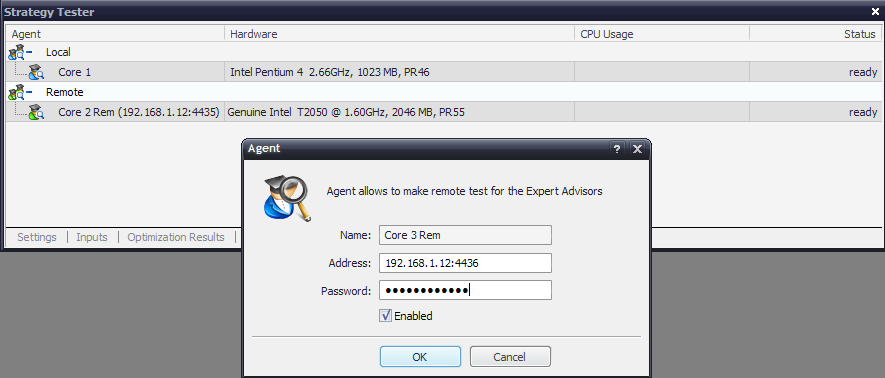
A pop-up window will appear. You must input the password, ip address and port number that you specified earlier. In my case, i use the ip address:port number 192.168.1.12:4435 for the remote agent 1 and 192.168.1.12:4436 for the remote second agent.

4. In case you have a firewall installed on the computer with the remote-agents service running, allow the connection. You may also open the ports on your router if they are closed. I'm using the Comodo Firewall program, so i had to allow the outgoing connection:

metatrader 5 agents
5. After you have added all remote agents you can test them by running a EA optimization. In my case the remote agents were successfully activated

As said above, all agents are shown in a table divided into two parts - local and remote agents. The "Hardware" column contains information about the type of the processor, CPU clock, RAM size and internal performance rate (the higher the rate is, the the more powerful the hardware is); CPU Usage — indicator of the core usage level; Status — the status of the agent: busy, ready, unavailable.

metatrader 5 agents
You can add as many remote agents as you want, so you can build your own supercomputer. The Metatrader 5 strategy tester provides a solutions with the remote agents feature for complex Expert Advisor optimization, which traders would not dream of being able to solve without access to supercomputers.

Read more about Metatrader 5 Strategy Tester

In Metatrader 5 Strategy Tester you can test an Expert Advisor using different currencies, but you can also automatically test a multi-currency EA without the need of switching the currencies as in MT4.

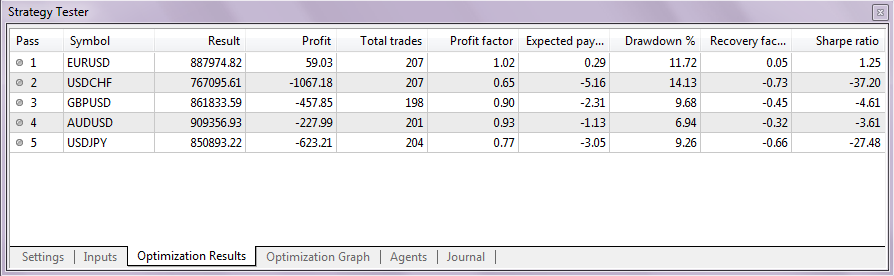
To test a single currency EA using different currencies you must select the option "All Symbols Selected in Market Watch" in the optimization types selection. You can also select the currencies you want to test in the Market Watch window. In my case, i have selected the Heiken Ashi Expert from the example EA's folder using 5 different symbols. The input parameters were standard:

Multi-Currency Strategy Testing with MetaTrader 5

Note that for each tested symbol, around 10-15MB of history will be downloaded, so if you have selected a lot of symbols it may take a while.

In the optimization results you can see which currencies have performed the best. So using the "All Symbols Selected in Market Watch" option you can automatically test an EA on many symbols, without the need to do it manually.

Multi-Currency Strategy Testing with MetaTrader 5

One of the big advantages of the new Metatrader 5 strategy tester is the option to backtest multi-currency EA's. This was not possible in MT4. The testing and optimization process of an multi-currency expert advisor is the same as with other EA's. Metatester 5 will automatically read the code for multiple-symbol testing. The optimization results ad the equity curve will combine all symbols in one result.

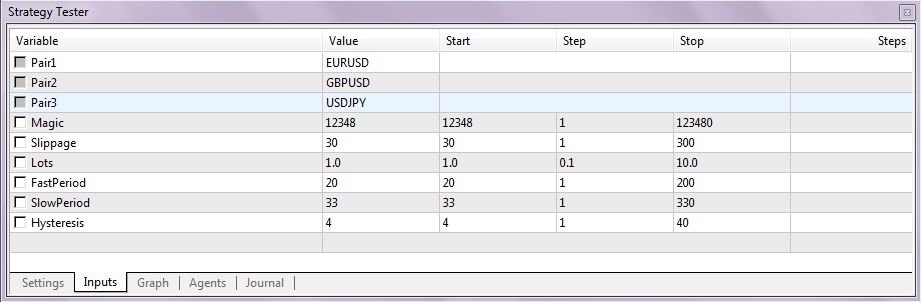
To demonstrate the multi-currency EA testing i have modified the GuruEX03 EA so that it will have 3 currencies. But you can always add more symbols if you want, it's very simple, just copy the code for symbol 4 from previous symbols at the comment "// add more symbols". The EA is a simple moving average crossover trading system. It will enter the market when the slow MA and fast MA are crossed. In the input parameters you can specify all the EA variables. The symbols used in this EA are EURUSD, GBPUSD and USDJPY. You can change them in the line 25-27 of the EA's source code. Download the multi-currency MA crossover EA (.mq5)

Multi-Currency Strategy Testing with MetaTrader 5
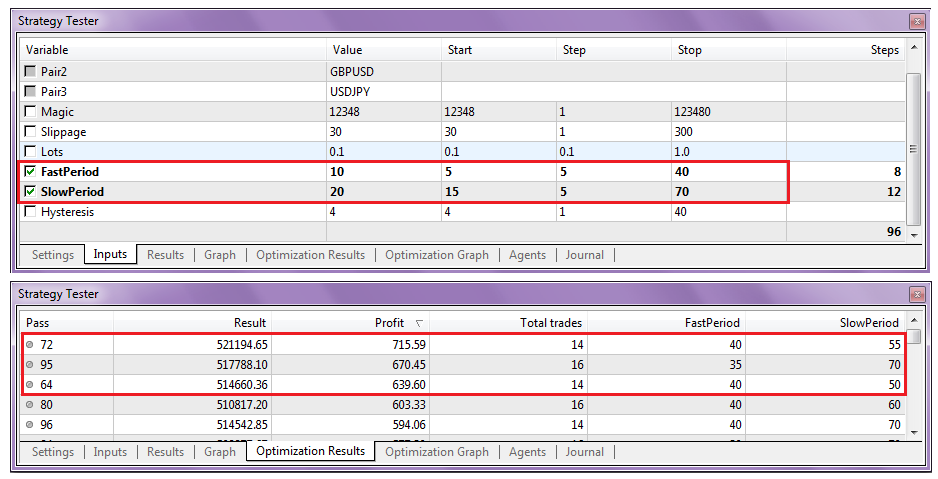
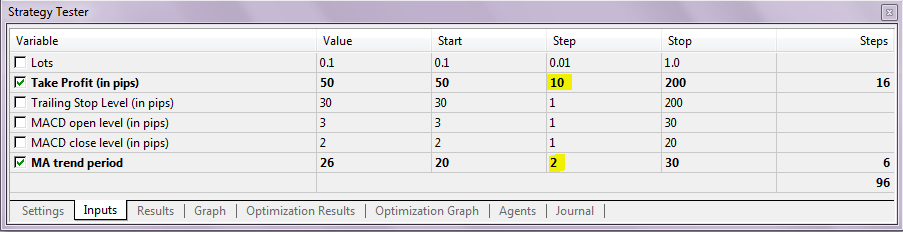
I have done a simple 96 step fast optimization and here are the results:

Multi-Currency Strategy Testing with MetaTrader 5
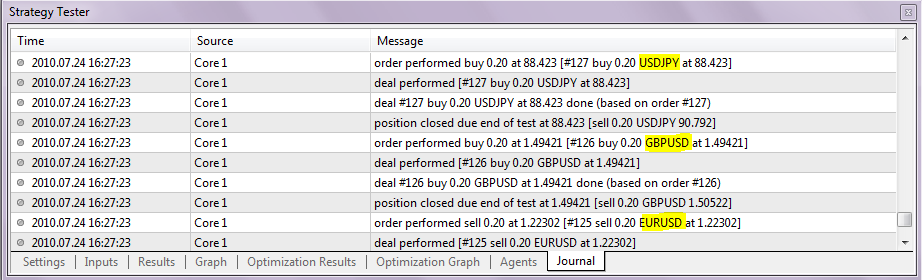
In the log file you can see that the testing process has used all 3 symbols:

Multi-Currency Strategy Testing with MetaTrader 5

A few months ago MetaQuotes released the beta version of the MetaTrader 5 Strategy Tester - Metatester 5. In this article i will do a quick review of it's options and features. Note that Metatester 5 in still in development, so new options and features can be added to it later (for example, visual backtesting and the option to display your backtested trades on the chart are missing).

There is no separate download file for the Metatester 5, the tester is one of components of the client terminal so it's distributed along with the MetaTrader 5 setup file. To open the tester press CTRL+R or click on its icon. The main window is not so different from MT4 tester. The "expert properties" button from the old tester is gone ( along with "symbol properties", "open chart" and "modify expert") the options are now present under the inputs tab and optimization properties below in the main window:

MetaTrader 5 Strategy Tester image
During the testing process, history for the selected currency will be automatically downloaded from the MetaQuotes servers ( around 10-15MB for one symbol). The history is stored in M1 format from 1999, before only in D1 format ( tick data or xx seconds bars are not available ). For the demo-account, the history is stored in C:\Program Files\MetaTrader 5\Bases\MetaQuotes-Demo\history\"symbol"\ folder and has the .hcc (uncompressed) format, per symbol it takes around 180MB of hdd space. Currently, there is no easy option to use separate external history like in MT4 (there is no mql5 DDE server), but according to MetaQuotes, the option to edit history and view history like in MT4 will be probably added later ( it was also recently confirmed by MetaQuotes staff on the MQL5 forums ).

MetaTrader 5 Strategy Tester image

MetaTrader 5 Strategy Tester image
Settings in Metatester 5:

1. Optimization

MetaTrader 5 Strategy Tester image
Optimization ( Testing of the EA on history data with different sets of parameters, aimed at finding their best combination. During multiple runs, different combinations of the input parameters of the EA are tried and the best ones are selected. Note that an EA must have some input parameters that can be optimized like take profit, trailing or technical parameters like period etc. ). If optimization is disabled, the EA is tested with default input parameters.

- Fast Genetic Based Algorithm is based on the genetic algorithm of searching the best values of input parameters. This type is much faster than the slow complete algorithm and is almost of the same quality.

- Slow Complete Algorithm: runs are performed for all possible combinations of values of the input variables selected for optimization. This method is the most precise one, but also takes much more time.

From the MQL5 documentation: Genetic optimization is based on the constant selection of the most "adapted" parameters (values that give the best result). From the total number of all possible combinations of parameters, two populations (sets) are selected by a random sample. After that, both sets are tested and the one with the best results (according to the optimization criterion) is left. The set members are randomly crossed with one another, undergoing random mutations and inversions of parameters. The descendants are sorted out by the best results, and crossing repeats.

Operations of sorting and crossing repeat until there is improvement of results (the best result among descendants is better than the best one among the parents). The completion of optimization requires absence of improvement of the optimization criterion during several crossings (generations). During a genetic optimization, the number of testing runs is much lower, which provides such a quickness of optimization.
- All Symbols Selected in Market Watch: unlike the above described optimization types, this one allows to test an EA with the same input parameters but using different symbols. Only the main symbol of testing is changed in each pass, i.e. the symbol of chart the EA would be attached to. The optimization is performed only with symbols that are currently chosen in the "Market Watch" window. So, by selecting the various symbols, you can manage the optimization.

2. Optimization Criterion

MetaTrader 5 Strategy Tester image
The optimization criterion is a certain factor, whose value defines the quality of a tested set of parameters. The higher the value of the optimization criterion is, the better the is testing result with the given set of parameters:

Balance max — the highest balance;
Balance + max Profit Factor — balance and profit factor;
Balance + max Expected Payoff — balance and expected payoff;
Balance + min Drawdown — balance and lowest drawdown; ( recommended )
Balance + max Recovery Factor — balance and the recovery factor;
Balance + max Sharpe Ratio — balance and the Sharpe ratio;
Custom max — the optimization criterion here is the value of the OnTester() function in the EA. This parameter allows using any custom value for the optimization of the EA.

3. Forward Mode

This option allows checking optimization results to eliminate fitting on certain time periods. During the forward optimization, the period set in the "Date" field is divided into two parts in accordance with the selected forward period (half, one third, a fourth or a custom period, when the start date of the forward testing is set). On the first part, the EA optimization is conducted. After that the best passes are selected (10% at the full parameters fitting, or 25% at a genetic algorithm), and only they are started on the forward period. The results of the best passes in the optimization on both periods can then be compared on the "Optimization Results" tab.

Tick Generation Mode

- Every tick: the most accurate mode but also the slowest one. All ticks are modeled in it;
- 1 Minute OHLC: only 4 prices (Open, High, Low and Close) of each minute bar are modeled;
- Open prices only — OHLC prices are modeled, however only the open price is used for testing/optimization.

4. Input Parameters

MetaTrader 5 Strategy Tester image
This options tab allows managing the Expert Advisor's input parameters. An EA must have at least 1 input parameter that can be optimized. Select the input parameters that must be optimized, select a start and stop value ( for example, take profit from 50 to 200 ) and a step value ( step of trying of the parameter values ). If there are to many steps, the optimization process will take a very long time. So the best strategy is to use a big step value, and then after some optimization rounds reduce it to smaller values:

MetaTrader 5 Strategy Tester image
If you right click on the Input Parameters window, a context menu window will appear where you can load or save your input parameters or select the default options:

MetaTrader 5 Strategy Tester image
Agents:

The process of testing and optimization of Expert Advisors is performed using "agents". The number of available local agents (started on the computer where the terminal is installed) is equal to the number of logical cores of the processor. Agents are created automatically. MetaTrader 5 Strategy Tester allows working with the unlimited number of external (remote) agents using all available computation powers. I will write about it in the next article.

MetaTrader 5 Strategy Tester image
Optimization results:

MetaTrader 5 Strategy Tester image

MetaTrader 5 Strategy Tester image
Results of the EA's optimization are displayed on the Optimization results tab. You can sort the optimization results by data such as Result (the resulting value of the parameter that is the optimization criterion used for selecting the best runs), profit factor etc. There is also a context menu ( via right click ) where you can execute commands like "Run Single Test" (start testing of the EA with the parameters of the selected run), etc. You can also view the Optimization Graph, a visual representation of the optimization process in the Optimization Graph Tab.
From the MQL5 documentation:
- Pass — pass number;
- Result — the resulting value of the parameter that is the optimization criterion used for selecting the best runs;
- Profit — obtained profit/loss for this run;
- Total trades — total number of trades executed for the run;
- Profit factor — ration of the total profit to the total loss in percents. One means that the total of profits is equal to the total of losses;
- Expected payoff — this is a statistically calculated value that reflects the average profitability/loss of one trade;
- Drawdown — the relative drawdown of equity, the largest loss in percents from the maximal value of equity;
- Recovery factor — this value reflects the riskiness of the strategy - the amount of money risked by the Expert Advisor to make the profit it obtained. It is calculated as the ratio of a profit obtained to the maximal drawdown;
- Sharpe Ratio — this ratio characterizes efficiency and stability of a strategy. It reflects the ratio of the arithmetical mean profit for the position holding time to the standard deviation from it. Plus to that, it accounts for the risk-free rate which is the profit on a certain deposited amount of money;
- Optimized inputs — in addition to the common statistical values, values of input parameters set for this run are shown here.
Strategy testing results:

MetaTrader 5 Strategy Tester image
Results of an EA testing are displayed in the Results tab. You can view the trading history of the EA for the period of testing and different statistical results.
From the MQL5 documentation:
- Initial Deposit — the initial deposit for testing;
- Bars — number of bars generated for the symbol the testing is conducted on;
- Ticks — number of ticks during testing;
- Gross Profit — sum of all profitable trades in monetary units;
- Gross Loss — sum of all losing trades in monetary units;
- Total Net profit — the financial result of all trades. This values is the difference between the Gross Profit and Gross Loss;
- Profit Factor — ratio of the gross profit to the gross loss in percents. One means that the sum of profits is equal to the sum of losses;
- Expected Payoff — this is a statistically calculated value showing the average profitability/loss of one deal. This value can also be considered as a forecasted profitability/loss of the next deal;
- Recovery Factor — this value reflects the riskiness of the strategy - the amount of money risked by the Expert Advisor to make the profit it obtained. It is calculated as the ratio of a profit obtained to the maximal drawdown;
- Sharpe Ratio — this ratio characterizes efficiency and stability of a strategy. It reflects the ratio of the arithmetical mean profit for the position holding time to the standard deviation from it. Plus to that, it accounts for the risk-free rate which is the profit on a certain deposited amount of money;
- Balance Drawdown Absolute — the maximal loss on the balance below the initial deposit;
- Balance Drawdown Maximal — the maximal loss from the local maximum in the deposit currency and as percent from the deposit;
- Balance Drawdown Relative — the maximal drawdown from the highest balance value in percents, and the appropriate money value;
- Equity Drawdown Absolute — the largest loss on assets below the initial deposit;
- Equity Drawdown Maximal — the largest loss from the local maximum in the deposit currency and as percent from the deposit;
- Equity Drawdown Relative — the largest loss in percents from the maximal value of assets, and the appropriate money value;
- Total trades — the total number of executed trades;
- Short Positions (won %) — number of short positions and percent of winning short positions;
- Long Positions (won %) — number of long positions and percent of winning long positions;
- Profit Trades (% of total) — number of winning trades and their percentage in the total number of trades;
- Loss trades (% of total) — number of losing trades and their percentage in the total number of trades;
- Largest profit trade — the largest profit among all winning trades;
- Largest loss trade — the largest loss among all losing trades;
- Average profit trade — the average profit value per a trade (the total of profits divided by the number of winning trades);
- Average loss trade — the average loss value per a trade (the total of losses divided by the number of losing trades);
- Maximum consecutive wins ($) — the longest series of winning trades and their total profit;
- Maximum consecutive losses ($) — the longest series of losing trades and their total loss;
- Maximal consecutive profit (count) — the maximal profit for one series of winning trades and the number of winning trades in it;
- Maximal consecutive loss (count) — the maximal loss for one series of losing trades and the number of losing trades in it;
- Average consecutive wins — the average number of winning trades in winning series;
- Average consecutive losses — the average number of losing trades in losing series.
Via the context menu ( right click ) you can export the report as a html/xml file.

MetaTrader 5 Strategy Tester image
In the Graph tab, the results of the EA testing are represented in a graphical form with the balance curve (blue line) and the equity curve (green). The margin level is displayed the bottom (histogram of margin level in percents). Via the context menu ( right click you can export the graph to other programs like MS Excel or save the image to clipboard.

Log

MetaTrader 5 Strategy Tester image
In the Log tab you can find a record of the actions, performed by the tester during the EA's testing and optimization and warning/error messages. The log file is automatically saved to the C:\Program Files\MetaTrader 5\Tester\... folder. ( *.log files ).


Read more about the MetaTrader 5 Strategy Tester here: The Algorithm of Ticks’ Generation within the Strategy Tester of the MetaTrader 5 Terminal: http://www.mql5.com/en/articles/75 and here ( at the end of the article, the optimization process is shown) - An Example of a Trading System Based on a Heiken-Ashi Indicator: http://www.mql5.com/en/articles/91

You can leave feedback, suggestions and bug reports in the Metatester 5 thread on the MQL5 website: http://www.mql5.com/en/forum/851

MetaTester 5
MetaQuotes is about to release the MetaTrader 5 trading strategy tester ( MetaTester 5 ). One of the big improvements of the new tester is the possibility to create individual calculation frameworks ( agents ) to increase the speed of trading strategies optimization / calculation. On the local computer, each agent represent 1 logical processor core, so for example if you have a quad-core cpu, you can have 4 agents running. The agents can be also installed on remote computers in your local network or other Internet-connected computers around the world. This means that you can create a distributed computing (grid computing) project with as much cpu power as you want. This concept is similar to the popular SETI@home or Folding@Home projects.

MetaTester 5
The installation of (remote) agents is very simple, according to information from MetaQuotes, all you need is to use MetaTester.exe (a single file, nothing else is required) and install agents as services according to the number of cores or one by one. A separate access password is set for each agent, to ensure that only authorized users connect to it. The client terminal on the central computer plays a manager role and coordinates all the (remote) agents. Each agent opens one local TCP port and waits for connection from the manager client terminal. You can configure all the connections in your router/firewall if it's necessary. The connections will be encrypted and protected by password to ensure maximum security. Once you have everything configured, the entire system will operate in automatic mode. If an agent will interrupt his work, his task will be transferred to the next available agent.

MetaTester 5
The new Metatrader 5 strategy tester will be much faster than in MT4 because the tester will function as a standalone application. Also, there will be a x64 version of the Metatrader 5 terminal & tester and the MQL5 code will be automatically compiled to native x64 code with access to all available memory. This means that you can use computers with dozens of gigabytes of memory. However, the strategy tester does not support Nvidia CUDA platforms because they are slow in processing of general purpose algorithms, and this is any program on MQL5. Instead of CUDA, every cpu that uses SSE2 (Pentium 4 or higher) is supported.

MetaQuotes will also launch a service on the MQL5 community website where computer power for remote agents will be sold. Everyone will be able to sell it, for example, you can sell your quad core cpu power from 1 to 6 AM. You can also buy the computer power direct form the MQL5 website. For it's services, MetaQuotes will take a small fee from the money which go to the seller.

Of course, the security measures will be also great:

* Fully encrypted compressed traffic network protocol between the client terminal and the agent;
* Access by password;
* Ability to specify a list of the IP addresses allowed to connect to the client terminal;
* Only local agents can use the DLL libraries with the appropriate authorization in the terminal;
* The EA's code wich is passed to the remote agent is never stored on the HDD of the agent and is passed in a modified form, it is impossible to dump;
* A remote agent does not know the name of the EA and does not save the results of calculated data to it's HDD;
* The agent program is also good protected from disassembly or modification.

According to MetaQuotes, the Metatrader 5 strategy tester will be soon available. Probably March/April 2010.

Read more about Metatrader 5 Agents